
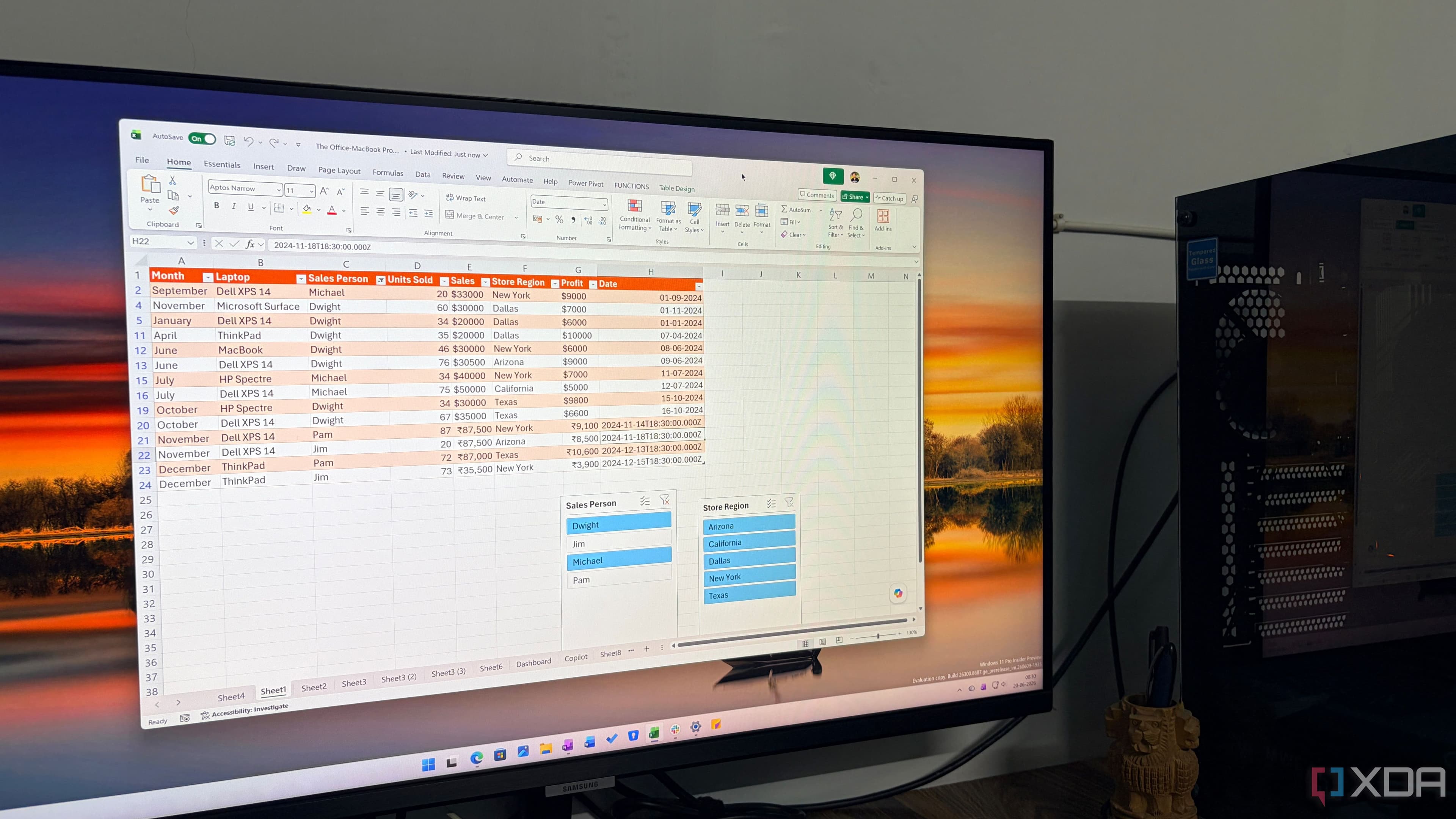
The Excel Productivity Myth Nobody Talks About
Every few months, a new Excel feature lands with a wave of enthusiasm. Copilot promises to write your formulas for you. Python integration opens the door to powerful data analysis without leaving your spreadsheet. Advanced automation workflows seem to offer limitless potential. And yet, after all the tutorials watched and tools tested, many Excel users find themselves wondering why their daily workflow still feels sluggish.
Here is an uncomfortable truth: the biggest productivity gains in Excel rarely come from the flashiest features. They come from removing friction. And the single most impactful way to remove friction in Excel is something that takes less than five minutes to configure — your Quick Access Toolbar.
What Is the Quick Access Toolbar and Why Does It Matter?
The Quick Access Toolbar, commonly referred to as the QAT, is the small strip of icons that sits in the very top-left corner of your Excel window. By default, it holds a handful of basic buttons: Save, Undo, and Redo. Most users glance past it every single day without giving it a second thought.
That is a costly habit. The QAT is one of the most customizable and underused features in all of Microsoft Excel. You can add virtually any command in the entire application to it — and those commands become available with a single click, no matter which tab you are currently working in. No hunting through the ribbon. No remembering which menu hides the function you need. Just one click, always in the same place.
Once you start treating the QAT as your personal command center, your relationship with Excel changes in a way that no AI assistant or scripting feature can fully replicate.
How to Customize Your Quick Access Toolbar
Setting up the QAT takes just a few minutes, and the payoff starts immediately. Here is how to do it.
- Click the small dropdown arrow at the far right of the Quick Access Toolbar. A menu of common commands appears.
- Select More Commands at the bottom of that menu to open the full customization panel.
- In the panel, use the left-hand list to browse every available Excel command. Use the dropdown at the top to filter by category, such as Commands Not in the Ribbon — this is where many hidden gems live.
- Select any command and click Add to move it to your toolbar. Click OK when you are done.
You can also right-click almost any button anywhere in the ribbon and choose Add to Quick Access Toolbar directly. This is often the fastest method when you know exactly what you want.
Which Commands Are Actually Worth Adding?
The answer depends entirely on your work, but a few commands consistently make the shortlist for power users across industries.
Paste Special
If you paste data in Excel more than a few times a day — and who does not — having Paste Special one click away is a game-changer. The ability to paste values only, paste formatting only, or paste transposed data without triggering a multi-step keyboard shortcut sequence adds up to a significant time saving over the course of a week.
Freeze Panes
Scrolling through large datasets and losing track of your headers is one of the most common sources of minor frustration in Excel. Keeping Freeze Panes accessible means you toggle it on and off instantly without navigating to the View tab every time.
Camera Tool
This is one of the great hidden features in Excel. The Camera Tool, found under Commands Not in the Ribbon, lets you create a live-linked image of any cell range. Drop it somewhere on your QAT and you will wonder how you ever built dashboards without it.
AutoFit Column Width
A tiny action performed dozens of times per session. One click from the toolbar beats double-clicking every column border or navigating through the Format menu repeatedly.
Speak Cells
An underrated proofreading tool. Excel will read your data aloud, which is invaluable when you need to verify numbers entered manually. Auditing a column of figures while following along on a printed sheet becomes effortless.
Why This Beats Copilot and Python for Everyday Use
Copilot and Python integration in Excel are genuinely impressive technologies. For complex analytical tasks, automating repetitive data transformations, or building sophisticated models, they offer capabilities that no toolbar tweak can match. Nobody is arguing otherwise.
But the vast majority of Excel time is not spent on complex tasks. It is spent on the small, repeated actions that happen dozens of times per session — copying, pasting, formatting, freezing, checking. These are the minutes that quietly disappear from your day, and no AI feature addresses them as directly as putting the right button in the right place.
Customizing your QAT costs you nothing. It requires no subscription, no learning curve, no prompt engineering, and no Python environment. It works on every version of Excel that most professionals use, and it delivers its time savings from the very first day you configure it.
The Broader Lesson for Excel Productivity
The most effective productivity improvements share a common trait: they reduce the number of decisions and movements required to complete a task. Every time you navigate a ribbon, scan a menu, or remember a keyboard shortcut you do not quite know by heart, you are paying a small cognitive tax. Those taxes compound over the course of a workday in ways that are easy to underestimate.
Treating your Quick Access Toolbar as a living, evolving workspace — one that you refine as your habits change — is one of the most sustainable productivity investments you can make as an Excel user. Start with five commands. Spend a week with them. Then reassess, swap out what you do not use, and add what you find yourself reaching for most often.
No advanced feature required. Just the right tools, in the right place, every single time you open a spreadsheet.