
How to Personalize the Screensaver on Your Kindle
Your Kindle is more than just a reading device — it's a companion you carry everywhere, and it deserves to look the way you want it to. One of the most overlooked but surprisingly satisfying ways to make your Kindle feel truly yours is by customizing its screensaver. Whether you want to ditch the default lockscreen ads, display the cover of the book you're currently reading, or show off a personal photo, Amazon gives you more flexibility than most people realize. In this guide, we'll walk you through everything you need to know about how to personalize the screensaver on your Kindle.
Why Bother Customizing Your Kindle Screensaver?
At first glance, a screensaver might seem like a minor detail. But consider how often you pick up your Kindle, glance at it while it's sleeping, or hand it to a friend. The screensaver is the face of your device. The default experience on many Kindle models displays promotional content and sponsored advertisements when the screen is locked — content that has nothing to do with you or your reading habits.
Removing those ads and replacing them with something meaningful — like the cover of the novel you're currently immersed in, or a cherished personal photograph — instantly makes your Kindle feel more personal and polished. It's a small change that makes a big difference in your overall experience with the device.
Step One: Remove Lockscreen Ads from Your Kindle
The first step toward a cleaner, more personalized screensaver is eliminating the lockscreen advertisements that come with many Kindle models sold at a discount. Amazon refers to these as "Special Offers," and while they subsidize the lower purchase price of the device, you can pay a small one-time fee to remove them permanently — or, in some cases, request their removal for free if you contact Amazon customer support and ask politely.
How to Remove Special Offers
- Go to Amazon.com and sign in to your account.
- Navigate to Manage Your Content and Devices.
- Find your Kindle in the device list and click the three-dot menu next to it.
- Select Remove Offers and follow the prompts to pay the removal fee (if applicable).
- Alternatively, contact Amazon customer support via chat or phone and request the removal — many users report success getting this done at no charge.
Once the ads are removed, your Kindle's screensaver will no longer display promotional content, giving you a clean slate to work with.
Step Two: Enable Book Covers as Your Screensaver
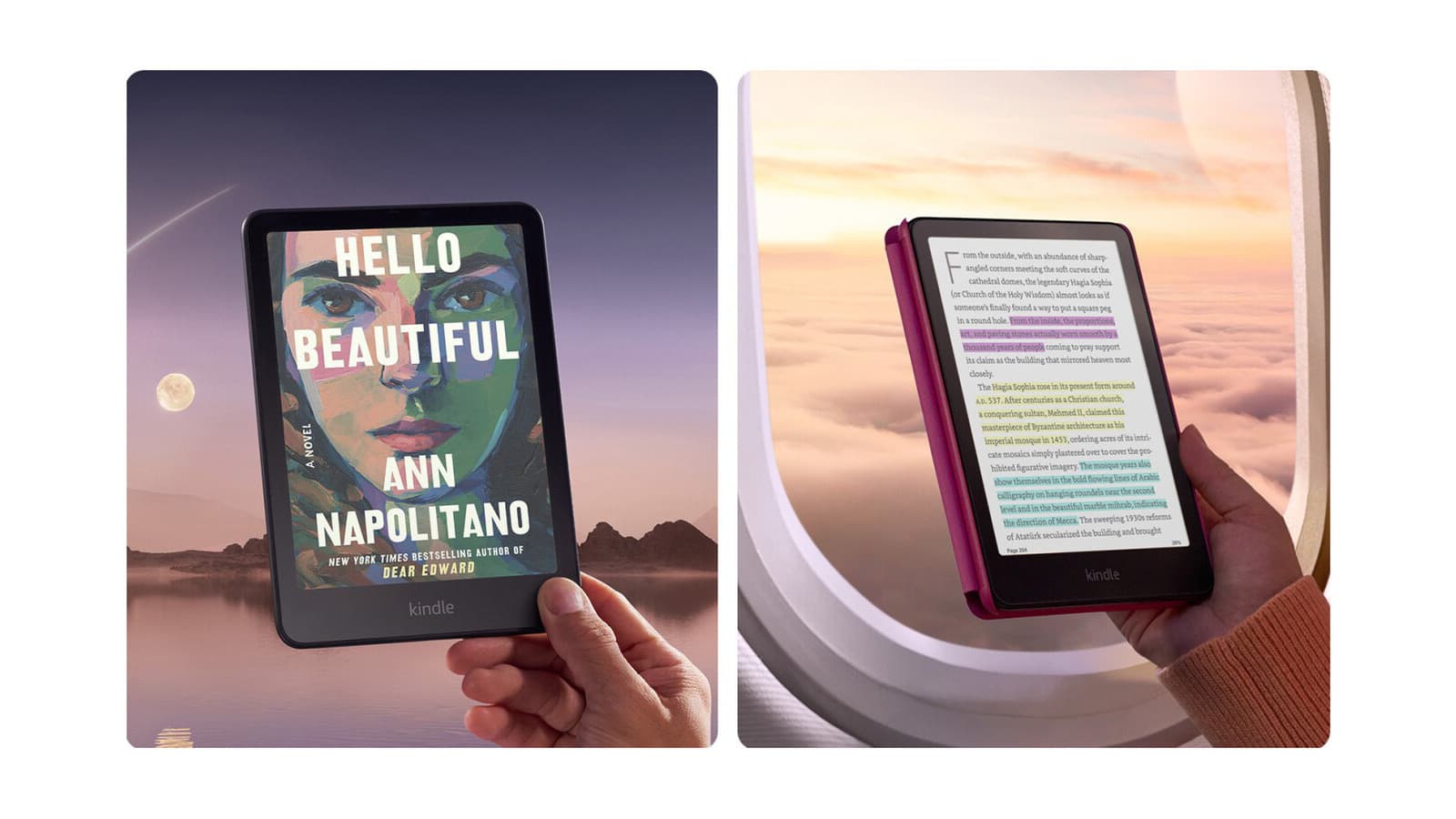
One of the most popular and visually appealing screensaver options for Kindle users is displaying the cover of the book currently being read. This feature is built right into the Kindle operating system and takes only a few seconds to activate.
How to Enable Book Cover Screensaver
- From your Kindle's home screen, tap the three-line menu icon (or swipe down from the top on newer models to access the settings panel).
- Go to Settings, then tap Device Options.
- Look for Show Cover or Display Cover and toggle it on.
Once enabled, whenever your Kindle goes to sleep, it will show the cover of whatever book you most recently opened. It's an elegant solution that keeps your reading experience front and center, even when the device is at rest.
Step Three: Use a Personal Photo as Your Kindle Screensaver
For those who want to go even further, it's possible to use your own photos or images as a custom Kindle screensaver. This option requires a bit more effort, but the result is a screensaver that is entirely unique to you.
How to Set a Custom Image Screensaver
- Connect your Kindle to your computer using a USB cable.
- Open the Kindle as a storage device and navigate to the root folder.
- Create a new folder named screensavers (all lowercase, no spaces).
- Add your desired images to this folder. Recommended dimensions are 758 x 1024 pixels for most Kindle models, saved as PNG or JPG files.
- Safely eject your Kindle from your computer and restart the device.
It's worth noting that this method works most reliably on older Kindle models or on devices that have been jailbroken. Newer Kindle firmware versions have restricted this functionality to some degree. If your device doesn't immediately recognize the custom screensavers folder, a factory reset followed by adding the folder before your content is synced may help.
Tips for Getting the Best Results
Getting your Kindle screensaver looking exactly right can take a little trial and error. Here are a few practical tips to help you along the way.
- Optimize your images for grayscale. Because most Kindle displays are e-ink and render in grayscale, images with high contrast and clear detail will look far better than colorful, low-contrast photos.
- Keep file sizes small. Large image files can slow down the screensaver loading time. Aim to keep images under 500KB where possible.
- Restart your Kindle after making changes. If your new screensaver settings don't appear right away, a simple restart almost always resolves the issue.
- Check your Kindle model's firmware version. Some customization options vary depending on which generation of Kindle you own and what software version it's running.
Final Thoughts
Personalizing your Kindle screensaver is one of those small but genuinely satisfying tweaks that makes your reading device feel like it truly belongs to you. Whether you choose to remove lockscreen ads for a cleaner look, enable book cover display to celebrate what you're currently reading, or go the extra mile and load up a custom personal photo, the result is a Kindle that reflects your personality every time it wakes from sleep.
The process is straightforward on most models, and the payoff is immediate. With just a few minutes of setup, you'll never have to look at an unwanted advertisement on your lockscreen again — and your Kindle will look exactly the way you want it to.