
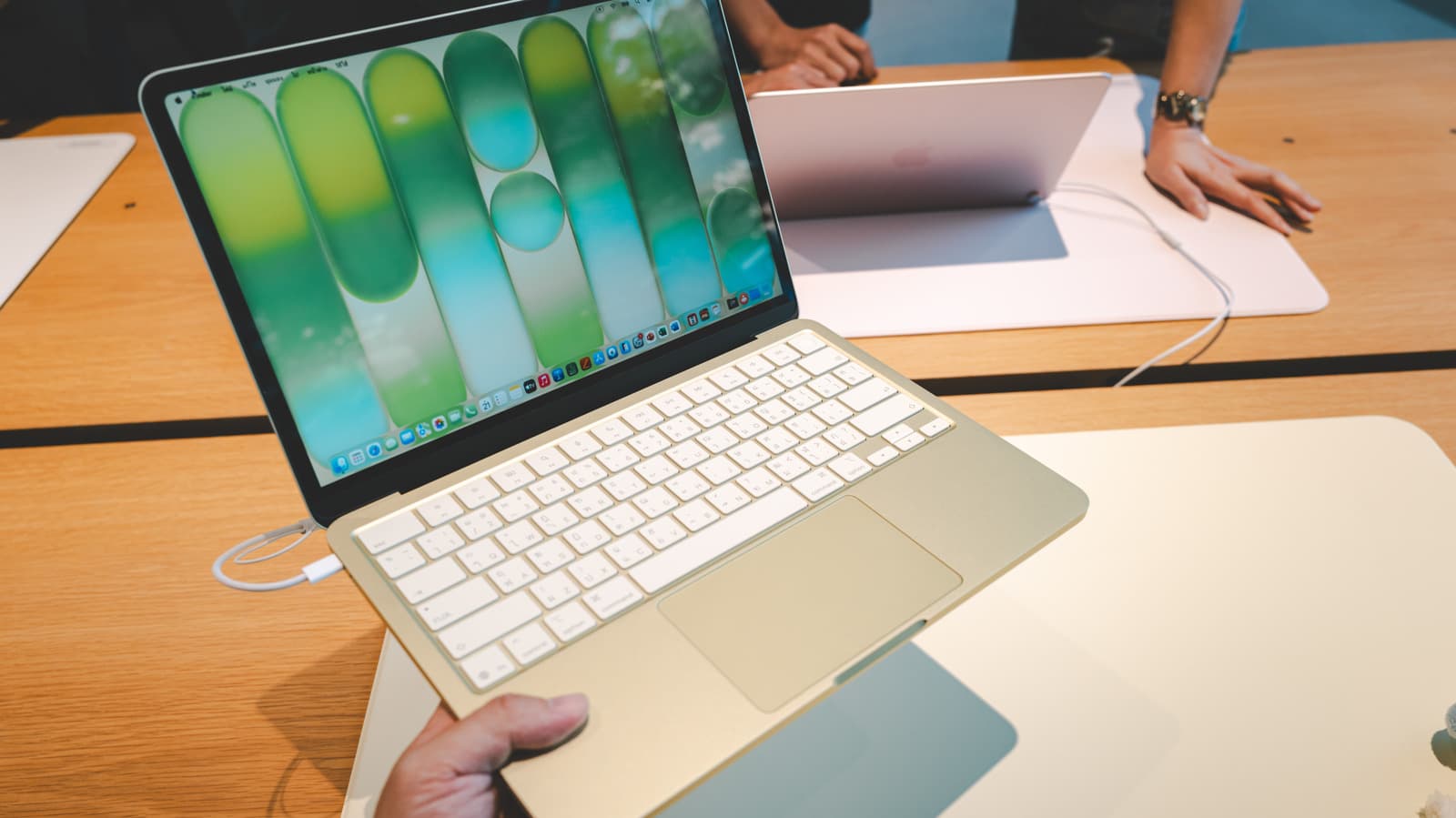
Why MacBook Is a Top Choice for Students
Walk into any college lecture hall or high school classroom and you will spot them almost immediately — the glowing Apple logo of a MacBook. These laptops have become a staple of student life, and for genuinely good reason. MacBooks are built with a combination of performance, battery life, and software polish that few other laptops can match. But owning a MacBook is one thing; actually knowing how to use it well is another.
Many students rely on their MacBook for little more than browsing the web and writing papers, never discovering the powerful tools sitting right beneath their fingertips. Whether you are a freshman just unboxing your first Apple laptop or a graduate student who has been using one for years, the following five features can transform the way you work, study, and stay organized every single day.
1. Focus Mode: Eliminate Distractions When It Matters Most
Distractions are a student's biggest enemy, and social media notifications, iMessages, and app alerts are always competing for your attention. Apple's Focus Mode, found under System Settings, is one of the most underused yet most powerful tools available on macOS.
Focus Mode allows you to create custom profiles — like a "Study" mode — that silence specific notifications, hide certain apps, and even set auto-replies to let people know you are unavailable. You can schedule it to activate automatically during your usual study hours or trigger it manually whenever you need a deep work session.
When you activate a Study Focus profile, only the apps and contacts you approve can reach you. That means no Instagram pings, no group chat noise, and no random news alerts pulling your eyes away from your textbook or research paper. For students managing tight deadlines, this single feature can meaningfully increase your productive output.
2. Split View and Stage Manager: Multitask Like a Pro
Taking notes while watching a lecture video, or referencing a research paper while writing an essay, are everyday student tasks that demand serious multitasking. MacBook handles this beautifully through two powerful windowing tools: Split View and Stage Manager.
Split View lets you snap two apps side by side in full screen, giving each one exactly half your display. Hold down the green maximize button on any window and you will see the option to tile it to the left or right. It is perfect for keeping your notes app and your video stream visible at the same time without constant window switching.
Stage Manager, introduced in more recent versions of macOS, takes things further. It organizes your open windows into a visual sidebar, grouping related apps together so you can switch between task clusters instantly. Think of it as a smarter, more visual version of traditional window management — ideal for students juggling multiple subjects or projects simultaneously.
3. Universal Clipboard and Handoff: Work Seamlessly Across Devices
Most students today use more than one Apple device — perhaps an iPhone for photos and communication, and a MacBook for writing and research. Apple's Continuity features are designed to make these devices feel like one connected system, and two of the most practical tools within that ecosystem are Universal Clipboard and Handoff.
Universal Clipboard allows you to copy something on your iPhone — a photo from your camera roll, a web link, a block of text — and paste it directly on your MacBook, and vice versa. No emailing yourself files, no AirDrop required for quick transfers. As long as both devices are signed into the same Apple ID and on the same Wi-Fi network, it just works.
Handoff takes this a step further by letting you start a task on one device and pick it up on another. Start reading an article on Safari on your iPhone during your commute, and your MacBook will display a small Handoff icon in the Dock the moment you sit down, letting you continue exactly where you left off. For students constantly moving between home, campus, and the library, this is an effortless productivity boost.
4. Spotlight Search: Your MacBook's Most Powerful Hidden Tool
Spotlight Search is arguably the most underappreciated feature on any MacBook. Accessed instantly with the keyboard shortcut Command + Space, Spotlight is a universal search bar that reaches into virtually every corner of your Mac and even the internet.
You can use it to open apps without navigating the Dock, find documents buried deep in your folders, look up definitions, perform quick unit conversions and currency calculations, check the weather, and even search your emails and calendar events. For a student who has hundreds of lecture notes, PDFs, and assignment files scattered across their desktop and cloud storage, Spotlight turns a chaotic file system into something instantly navigable.
Beyond file search, Spotlight can answer factual questions directly, saving you the extra step of opening a browser. It is one of those features that, once you build the habit of using it, you will reach for it dozens of times a day without thinking.
5. Quick Note and the Notes App: Your Always-Ready Digital Notebook
Apple's built-in Notes app is far more capable than most students give it credit for. With features like checklists, tables, document scanning via iPhone, tags, and Smart Folders, Notes can function as a full-featured organizational hub for your academic life.
The standout feature for students is Quick Note, which lets you summon a floating notepad instantly from anywhere on your Mac using a customizable keyboard shortcut or a hot corner. You can jot something down mid-lecture, mid-video, or mid-research session without leaving your current window. The note saves automatically and syncs across all your Apple devices through iCloud.
You can also link Quick Notes to specific web pages or documents, so when you revisit a source later, your related note pops back up automatically. For students doing research across multiple sessions, this contextual memory is a remarkable time-saver.
Start Using These Features Today
MacBooks are genuinely powerful machines, but their value multiplies when you know which tools to reach for. Focus Mode keeps you on task, Split View and Stage Manager make multitasking fluid, Universal Clipboard and Handoff connect your devices seamlessly, Spotlight puts everything at your fingertips, and the Notes app keeps your academic life organized. These are not obscure power-user tricks — they are features built into every MacBook, waiting to be discovered. Start exploring them this week, and you will likely wonder how you ever studied without them.