
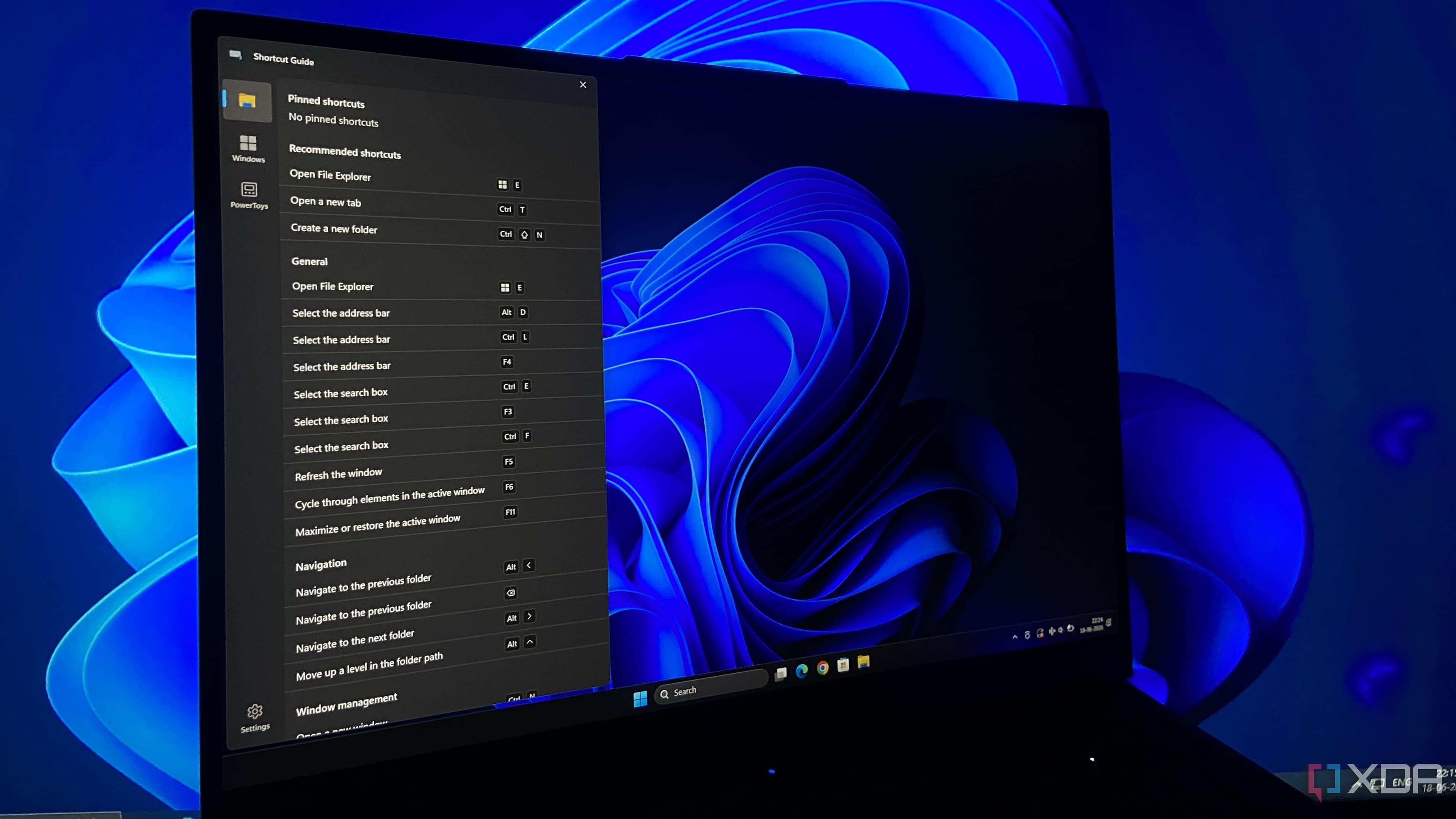
The Keyboard Shortcut Problem Every Windows User Ignores
If you have spent any meaningful amount of time on a Windows PC, your fingers have developed a kind of muscle memory. You press Ctrl+C and Ctrl+V without thinking. You hit Ctrl+S before you even consciously decide to save. These shortcuts are so deeply embedded in the modern computing experience that they have crossed over from the operating system into web browsers, productivity suites, and creative tools alike. They are universal, nearly invisible, and completely automatic.
But the moment you step outside that small circle of common commands, most Windows users hit a wall. What was the shortcut for snapping a window to a specific quadrant of the screen? How do you open the emoji picker from the keyboard? Is there a fast way to switch between virtual desktops without touching the mouse? For many people, the honest answer is: "I have no idea, and I never bothered to look it up." The result is thousands of small inefficiencies that pile up over days, weeks, and years of daily computer use. That is exactly the problem that the PowerToys Shortcut Guide was designed to solve — and it does so in a way that feels almost embarrassingly simple.
What Is Microsoft PowerToys and Why Does It Exist?
Microsoft PowerToys is a free, open-source collection of utilities designed to extend the functionality of Windows for power users and enthusiasts. It has a long history, stretching back to the Windows 95 era, but its modern incarnation relaunched in 2019 and has been growing steadily ever since. The suite includes tools for renaming files in bulk, resizing images, creating custom keyboard remapping, running quick application launchers, and much more.
The philosophy behind PowerToys is straightforward: Windows is a capable operating system, but it holds back a number of useful features that either require technical know-how to access or are simply undiscoverable through normal use. PowerToys brings those features to the surface through purpose-built, lightweight utilities that anyone can install and configure. The Shortcut Guide is one of the most underappreciated tools in that lineup, and arguably one of the most immediately useful for everyday Windows users at any skill level.
How the PowerToys Shortcut Guide Actually Works
The concept behind the Shortcut Guide is almost deceptively simple. When you hold down the Windows key for a configurable amount of time — or press a custom hotkey if you prefer — a full-screen overlay appears on your display. This overlay lists every available Windows key combination along with a plain-language description of what each one does. You can see at a glance which shortcuts control window snapping, which ones open system settings panels, which ones manage virtual desktops, and which ones trigger accessibility features you may never have encountered before.
The moment you release the Windows key or dismiss the overlay, it disappears instantly without interrupting your workflow. There is no separate window to manage, no tab to switch to, and no documentation to dig through. The information you need appears exactly when you need it and vanishes the moment you are done with it. It is the kind of interaction design that feels obvious in retrospect but requires genuine thought to get right.
Windows Shortcuts You Probably Did Not Know Existed
One of the most valuable side effects of using the Shortcut Guide regularly is the gradual discovery of Windows features that most users have no idea are available. The overlay surfaces a surprising number of commands that even experienced users overlook. A few worth highlighting include:
- Win + Period (.) or Semicolon (;) — Opens the emoji and symbol picker directly from the keyboard, no mouse required.
- Win + Ctrl + D — Creates a new virtual desktop instantly, which is useful for separating workspaces by project or context.
- Win + Ctrl + Left/Right Arrow — Switches between virtual desktops fluidly, letting you move across workspaces without ever touching the taskbar.
- Win + Shift + S — Launches the Snipping Tool's region capture mode for fast, precise screenshots.
- Win + V — Opens the clipboard history panel, which lets you paste from a rolling list of previously copied items rather than just the most recent one.
- Win + Number Key — Launches or switches to the application pinned in that numbered position on your taskbar.
These are not obscure developer shortcuts buried in documentation. They are genuinely useful, time-saving commands built right into Windows that go unnoticed simply because there was no easy way to discover them before a tool like the Shortcut Guide came along.
Why This Should Be a Built-In Windows Feature
Here is where a reasonable frustration surfaces. The Shortcut Guide solves a problem that Microsoft created. Windows has accumulated hundreds of keyboard shortcuts across decades of development, and the operating system makes almost no effort to teach them to users proactively. There is no onboarding flow that introduces you to virtual desktops. There is no tooltip that reminds you clipboard history exists. Windows assumes you will either already know these features or find them by accident.
The Shortcut Guide effectively patches that gap, but it requires a separate download, a manual installation, and a conscious decision to seek it out. That is a high bar for a feature that would benefit virtually every Windows user. If this overlay were integrated directly into Windows — perhaps triggered by holding the Windows key for a second or two — millions of users would immediately become more capable and more efficient without having to do anything special at all.
Getting Started With PowerToys Shortcut Guide Today
Installing PowerToys is straightforward. You can find it in the Microsoft Store, download it directly from the official GitHub repository, or install it via the Windows Package Manager using a single command in the terminal. Once installed, the PowerToys dashboard lets you enable or disable individual tools and configure their behavior. For the Shortcut Guide specifically, you can adjust the hold duration before the overlay appears, choose a custom activation hotkey, and select a theme that works best on your display.
The entire suite is lightweight, runs quietly in the background, and has no meaningful impact on system performance. Even if the Shortcut Guide were the only tool in the package you ever used, the download would be worth your time within the first week of use.
A Small Tool With a Disproportionate Impact
The PowerToys Shortcut Guide is not the flashiest utility in the PowerToys suite. It does not transform your workflow with complex automation or surface hidden system controls. What it does is far more fundamental: it removes ignorance as a barrier to efficiency. Every shortcut you learn through the overlay is one fewer trip to the mouse, one fewer second lost in a menu, and one fewer small interruption to your concentration.
Multiply those savings across a full working day, and across months of consistent use, and the impact becomes genuinely significant. It is a quiet, well-designed tool that makes Windows feel like a system built for people who want to use it well — and that is exactly what a good utility should do.