
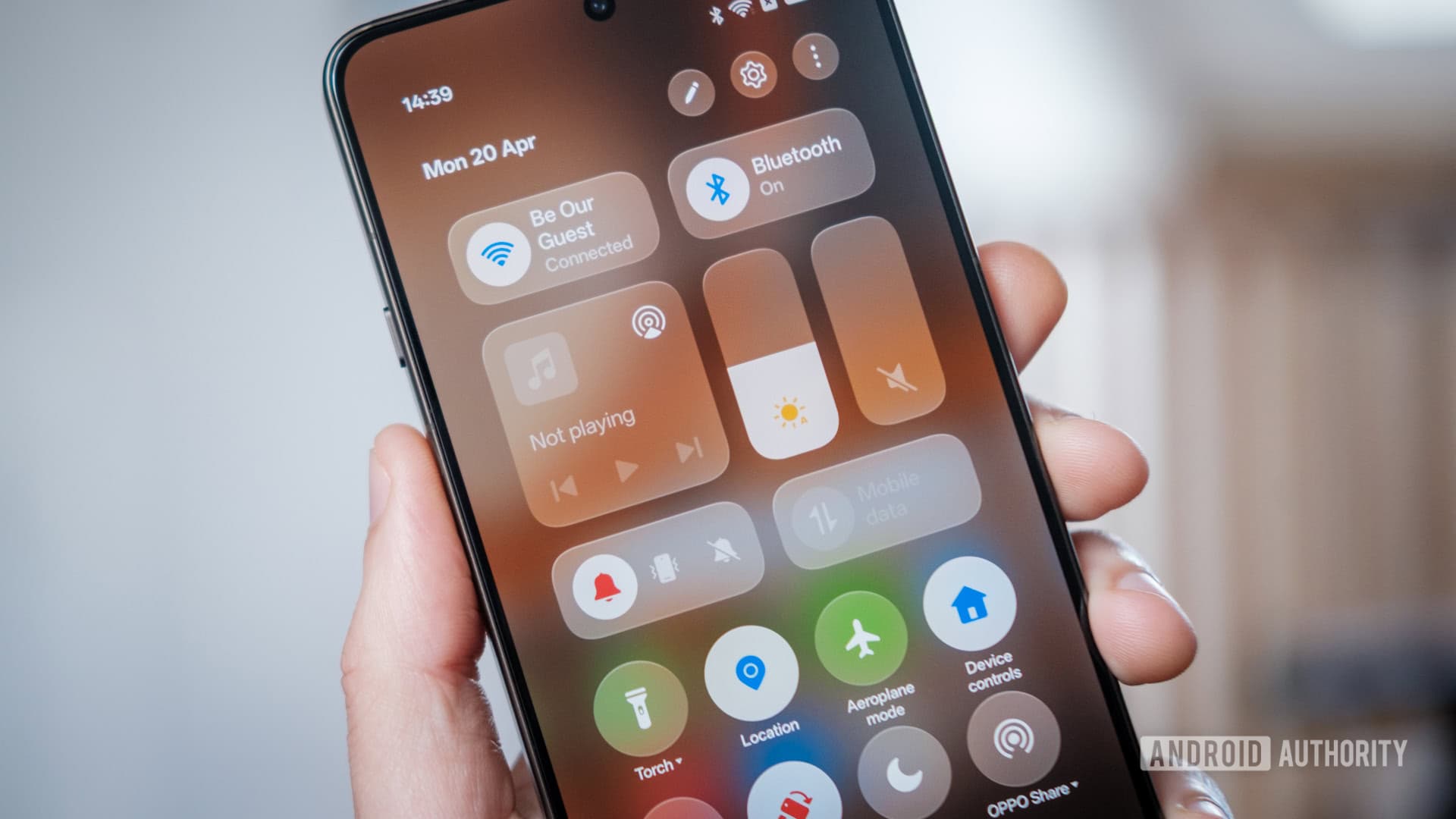
7 Buried Android Features You Need to Start Using Right Now
Android is one of the most powerful and customizable mobile operating systems on the planet. But with that power comes complexity — and complexity means that genuinely useful features often get buried under layers of menus, toggles, and manufacturer-specific skins. Even veteran Android users are regularly surprised to discover tools that have been sitting quietly on their devices for years.
After spending years writing about Android smartphones and testing dozens of devices, I've developed a habit of digging deep into settings menus that most people never open. Some of what I've found has genuinely changed the way I use my phone every single day. Here are seven buried Android features I wish everyone would start using — and exactly how to find them.
1. One-Handed Mode
Smartphones keep getting bigger, and using them with a single hand is increasingly awkward. What many users don't realize is that Android has had a built-in one-handed mode for quite some time. On stock Android and most major skins, you can enable this in Settings > Accessibility > One-Handed Mode. Once activated, a quick swipe down from the center of your screen shrinks the entire display into the lower half, making all your apps reachable with one thumb.
Samsung, Xiaomi, and OnePlus each have their own slightly different implementation, but the core functionality is the same. If you've ever nearly dropped your phone trying to reach a notification at the top of the screen, this feature is a game-changer.
2. Developer Options: Force 4x MSAA and Faster Animations
Most people have never unlocked Developer Options, but doing so opens a treasure chest of performance tweaks. To unlock it, go to Settings > About Phone and tap on Build Number seven times. Developer Options will then appear in your main Settings menu.
Inside, two adjustments are worth making immediately. First, reducing the Window, Transition, and Animator Scale values from 1x down to 0.5x makes your phone feel significantly snappier — animations complete faster, so everything just feels more responsive. Second, enabling Force 4x MSAA under the rendering section improves graphics quality in OpenGL ES 2.0 games. Neither change will damage your device, and both deliver a noticeably better experience.
3. Smart Connectivity with Adaptive Wi-Fi
Android includes a feature called Adaptive Connectivity (sometimes labeled Adaptive Wi-Fi or Smart Network Switching, depending on your device). Found under Settings > Network & Internet, this feature automatically switches your device between Wi-Fi and mobile data depending on signal quality. If your Wi-Fi connection is weak or slow, your phone will seamlessly hand off to your cellular connection without you lifting a finger.
This sounds simple, but it eliminates one of the most frustrating everyday experiences — being connected to a Wi-Fi network that's technically active but practically useless because you're too far from the router.
4. Clipboard History
If you've ever copied a piece of text only to accidentally replace it with something else before you could paste it, clipboard history is the feature you didn't know you needed. On Gboard (Google's default keyboard), tap and hold the clipboard icon in the toolbar to access everything you've recently copied — text, links, and more.
On Samsung devices, the Samsung Keyboard has a dedicated clipboard manager built in. Either way, this feature effectively gives you a short-term memory for your copy-paste activity, and it's surprisingly powerful for anyone who regularly moves information between apps.
5. Scheduled Dark Mode
Dark Mode has been widely adopted, but many users simply toggle it on permanently without realizing Android can schedule it automatically. Under Settings > Display > Dark Mode, you'll find a scheduling option that lets you activate Dark Mode at sunset and deactivate it at sunrise — or define a custom time window.
This is particularly beneficial for your sleep quality. Exposure to blue light from a bright white screen in the evening disrupts melatonin production. Having Dark Mode automatically engage as the sun goes down reduces eye strain and makes late-night scrolling far more comfortable without you having to remember to switch manually.
6. App Pinning for Shared Devices
If you ever hand your phone to a friend, family member, or colleague, App Pinning is worth knowing about. Found in Settings > Security > App Pinning (or Screen Pinning on some devices), this feature locks the screen to a single app. The person using your phone can interact fully with that one app but cannot swipe away to your home screen, notifications, or other applications.
To pin an app once the feature is enabled, open the Recents view, tap the app icon at the top of its card, and select Pin. To unpin, simply hold the Back and Recents buttons simultaneously. It's a small feature with a big impact on privacy.
7. Live Captions
Google's Live Caption feature is one of the most impressive accessibility tools built into modern Android. It automatically generates real-time captions for any audio playing on your device — videos, podcasts, voice messages, even phone calls on supported devices. You can enable it directly from the volume panel by tapping the caption icon, or find it under Settings > Accessibility > Live Caption.
It works entirely on-device, meaning no audio is sent to the cloud, and it requires no internet connection. Whether you're in a loud environment, forgot your headphones, or simply prefer reading to listening, Live Caption works quietly in the background and delivers remarkable accuracy.
Final Thoughts
Android's depth is its greatest strength and its biggest accessibility challenge. These seven features aren't obscure hacks or risky modifications — they're legitimate, well-designed tools that Google and manufacturers have built into your device and then seemingly forgotten to advertise. Taking even an hour to explore your phone's settings menu can completely transform how you interact with it every day.
Start with one or two features from this list, build the habit of deeper exploration, and you'll quickly find that your Android device is far more capable than you ever realized. The best Android phone you've ever owned might already be sitting in your pocket — you just haven't unlocked it yet.