
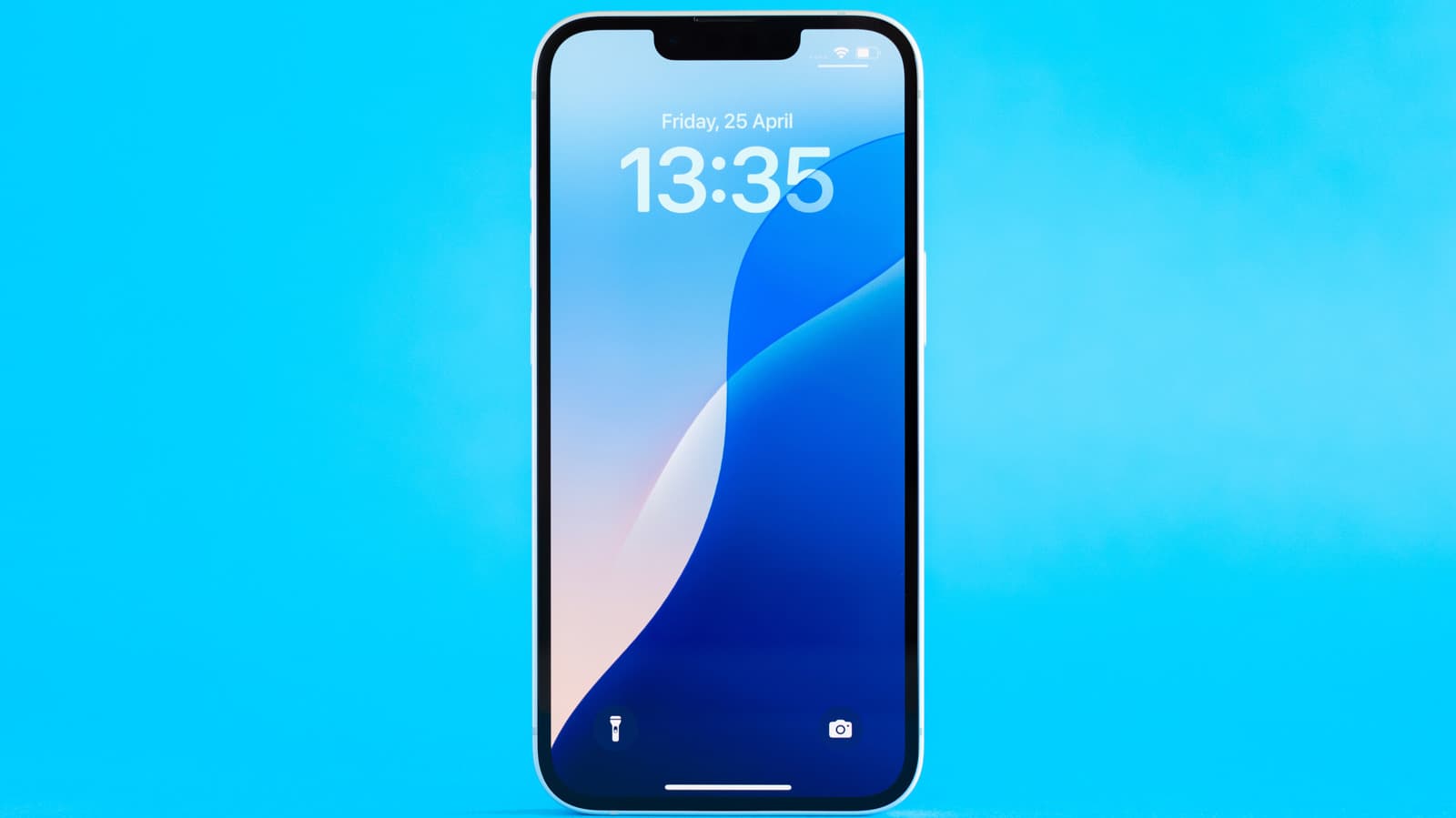
Your iPhone Lock Screen Is More Powerful Than You Think
Most people treat their iPhone lock screen like a waiting room — a place you pass through on your way to actually using your phone. You glance at your notifications, maybe check the time, and then unlock the device to get things done. But what if that lock screen is actually a destination in itself? Apple has quietly packed a surprising number of genuinely useful features into the lock screen experience, and most iPhone users are barely scratching the surface of what it can do.
Whether you're running iOS 16 or later, your lock screen has evolved from a simple notification board into a mini command center. From accessing powerful tools without typing in your passcode to customizing the entire look and feel of what you see the moment you lift your phone, there's a lot to explore. Here are five cool things your iPhone lock screen can do — no unlocking required.
1. Add Interactive Widgets That Give You Instant Information
Since iOS 16, Apple gave iPhone users the ability to add widgets directly to the lock screen — and this feature alone changes how many times you actually need to unlock your phone during the day. Lock screen widgets are small, glanceable displays that sit just below your clock, and they update in real time so the information they show is always current.
You can add widgets for a wide range of apps, including:
- Weather — see current conditions and hourly forecasts at a glance
- Activity rings — check your daily move, exercise, and stand progress without opening the Fitness app
- Calendar — see your next scheduled event the moment you pick up your phone
- Battery — monitor your iPhone or connected accessories like AirPods and Apple Watch
- Reminders — keep your to-do list front and center without unlocking
To add widgets, press and hold your lock screen, tap "Customize," select "Lock Screen," and then tap the widget area below the clock. The more useful apps you install, the more widget options you'll have available.
2. Launch the Camera Instantly Without Unlocking
Great photo moments don't wait for you to unlock your phone, open the app drawer, and find the camera icon. That's why Apple built a direct camera shortcut right into the lock screen. On most iPhone models, you can swipe left from the lock screen to instantly open the Camera app — no Face ID, no passcode, no delay.
This is one of the most underused features on the iPhone. The photos you take this way are still saved securely to your Photos library, and nobody who picks up your phone can browse your existing photos through this shortcut — they can only take new ones. It's a perfect balance between convenience and privacy, and it means you'll never miss a spontaneous shot again.
3. Control Your Music and Media Without Unlocking
If you're listening to music, a podcast, or an audiobook, the Now Playing controls appear right on your lock screen. You can play, pause, skip tracks, and even scrub through audio without unlocking your device. This might sound like a small thing, but it makes a meaningful difference when you're driving, working out, or have your hands full.
The media controls also work with third-party apps like Spotify, Apple Music, Audible, and Overcast. They appear automatically when something is playing. You don't need to configure anything — just start your audio, lock your phone, and the controls will be waiting for you whenever you need them.
4. Use Siri and Voice Controls Hands-Free
You don't need to unlock your iPhone to use Siri. From the lock screen, you can invoke Siri using "Hey Siri" or by holding the side button, and from there you can send messages, make calls, set reminders, control smart home devices, check the weather, or get answers to questions — all without ever entering your passcode.
This is particularly valuable when your iPhone is on a nightstand, a desk, or mounted in your car. You get the full power of Siri's voice intelligence without the friction of authentication. Just keep in mind that you can limit what Siri can access from the lock screen in Settings under Face ID & Passcode, which is worth checking if you share your space with others.
5. Customize Your Lock Screen to Match Your Style and Workflow
iOS 16 introduced one of the biggest lock screen overhauls in iPhone history, giving users the ability to fully customize the look of their lock screen. You can create multiple lock screen profiles and switch between them manually or have them change automatically based on Focus modes.
Here's what you can customize:
- Wallpaper — choose photos, Apple's dynamic wallpapers, weather-reactive backgrounds, or emoji patterns
- Clock font and color — pick from multiple styles and tint the clock to match your wallpaper
- Widgets — tailor what information is shown below and above the clock
- Focus-linked lock screens — automatically switch your lock screen when Work Focus, Sleep Focus, or a custom Focus activates
To get started, press and hold on your current lock screen and tap the plus (+) button to create a new one. You can save multiple configurations and switch between them anytime.
Getting More Out of Every Glance
Your iPhone lock screen isn't just a gate to unlock — it's a genuinely useful layer of your phone experience that Apple has invested heavily in developing. By setting up widgets, using the camera shortcut, letting Siri handle quick tasks, enjoying seamless media controls, and customizing the look to fit your life, you can accomplish more with less friction throughout your day.
The best part? All of these features are available right now, built into iOS, and free to use. Take a few minutes to explore your lock screen settings and you might be surprised how much of your daily iPhone use never has to go past the lock screen again.