
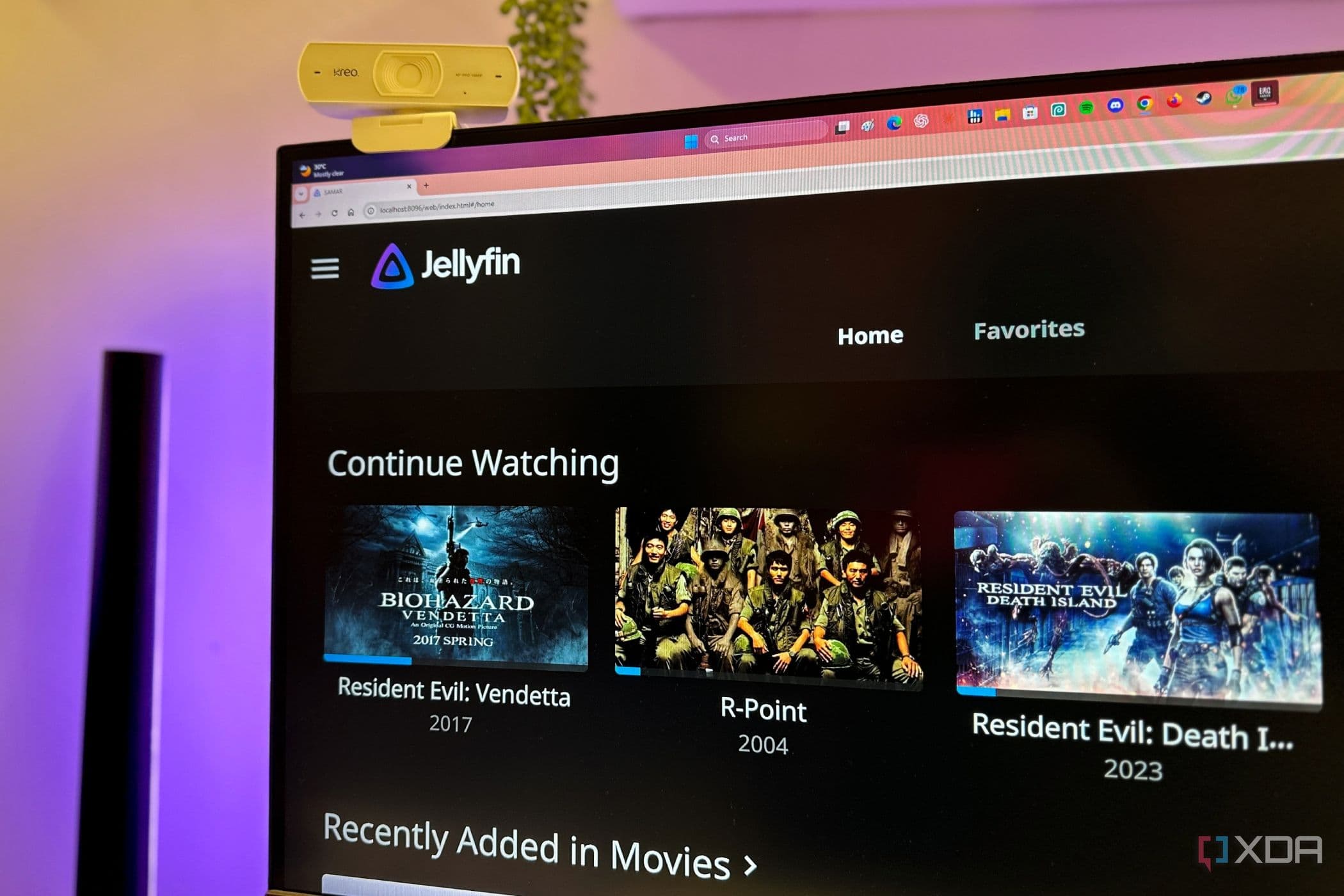
Why Jellyfin Is the Self-Hosted Media Server Worth Getting Right
If you have spent any time in the world of home servers, you already know the trade-off all too well. On one side, you have polished, subscription-driven platforms like Plex or Emby that look gorgeous and work smoothly right out of the box — but quietly charge you for the privilege of accessing your own media. On the other side, you have raw open-source tools that give you total control but greet you with a wall of settings, half-finished documentation, and interfaces that feel like they were designed by engineers for engineers.
Jellyfin has always been the free, open-source answer to that dilemma. But for a long time, it sat firmly in the "powerful but frustrating" camp. Recently, however, Jellyfin has matured significantly. With the right settings dialed in, it no longer just competes with paid alternatives — it can genuinely surpass them. The catch is that most of those improvements are not enabled by default. You have to know where to look.
After running a home media server for years, experimenting constantly, and rebuilding my setup more times than I care to admit, I found six specific Jellyfin settings that made an enormous difference. These are not obscure tweaks buried in config files. They are all accessible from the admin dashboard, and each one pushes Jellyfin noticeably closer to that premium experience you are probably chasing.
1. Enable Hardware Acceleration for Transcoding
This is the single biggest performance upgrade you can make to your Jellyfin server. By default, Jellyfin uses software transcoding, which means your server's CPU is doing all the heavy lifting when converting video formats on the fly. This works, but it can cause buffering, sluggish performance, and high CPU temperatures — especially when multiple users are streaming simultaneously.
If your server has a compatible GPU or an Intel processor with Quick Sync, you can offload that transcoding work to dedicated hardware. Navigate to the Admin Dashboard, then to Playback, and find the Transcoding section. From the Hardware Acceleration dropdown, select your appropriate option — whether that is NVENC for NVIDIA cards, AMF for AMD, or Intel Quick Sync for Intel iGPUs. The difference in responsiveness and stability is immediate and dramatic.
2. Set Up a Consistent Library Organization Structure
Jellyfin is only as smart as the file structure you feed it. If your media files are inconsistently named or organized, the metadata scanner will struggle to identify titles correctly, and your library will end up cluttered with mismatched artwork, wrong descriptions, and missing episodes.
Adopting a naming convention that follows Jellyfin's recommended patterns makes the scanner significantly more reliable. For movies, use a format like Movie Title (Year)/Movie Title (Year).mkv. For TV shows, organize episodes as Show Name/Season 01/Show Name S01E01.mkv. Once your files follow this structure, go into your library settings and trigger a full metadata refresh. The improvement in library accuracy and visual presentation is substantial.
3. Configure Playback Reporting and Watched Status Sync
One of the most underrated features in Jellyfin is its ability to track what you have watched across devices. But this only works reliably if you have user accounts properly configured and playback reporting enabled. Head to the user settings for each profile on your server, confirm that playback reporting is active, and make sure each device your household uses is logged into the correct account.
This small adjustment means you can start a film on your television, pause it, and pick it up seamlessly on a tablet or laptop — which is the kind of fluid, cross-device experience that most people associate with paid streaming services.
4. Adjust the Network Settings for Your Local Environment
Jellyfin's default network settings are designed to work in the broadest possible range of environments, which means they are not necessarily optimized for yours. Inside the Networking section of the admin dashboard, you can define your local IP ranges, set a preferred local streaming bandwidth, and configure whether Jellyfin should use HTTP or HTTPS for local connections.
For most home users, setting a high local streaming quality cap — or allowing direct play at full bitrate — eliminates unnecessary transcoding entirely for devices on your home network. This keeps quality at its absolute maximum while reducing server load at the same time.
5. Install and Customize a Better Client Theme
The default Jellyfin interface is clean and functional, but it has a distinctly utilitarian feel. One of the most impactful quality-of-life changes you can make requires no technical skill at all: installing a community CSS theme. Themes like Ultrachromic or JellySkin inject custom styling into the web client, giving Jellyfin a dramatically more polished, cinematic look that genuinely rivals Plex's famous interface.
You can apply a custom CSS theme directly from the Admin Dashboard under General settings. Paste in the theme's stylesheet link, save, and refresh the page. The transformation is immediate and surprisingly satisfying.
6. Enable DLNA or Chromecast for Whole-Home Casting
Finally, do not overlook Jellyfin's built-in casting and DLNA capabilities. Enabling DLNA from the dashboard allows any compatible device on your network — smart TVs, game consoles, older media players — to see and access your Jellyfin library without needing a dedicated app installed. Similarly, Chromecast support from compatible browsers or the Android app turns any TV with a Chromecast dongle into a fully functional Jellyfin screen.
The Bigger Picture: Jellyfin Rewards the Curious
What makes Jellyfin genuinely exciting in 2024 is that it no longer requires you to be an expert to get an excellent result. The gap between "default install" and "premium experience" has narrowed considerably, and most of the remaining gap can be closed in a single afternoon of configuration. The six settings above represent the most impactful starting points, but they are far from the only tools available.
Self-hosting a media server used to feel like a compromise. With Jellyfin properly configured, it increasingly feels like an upgrade.