
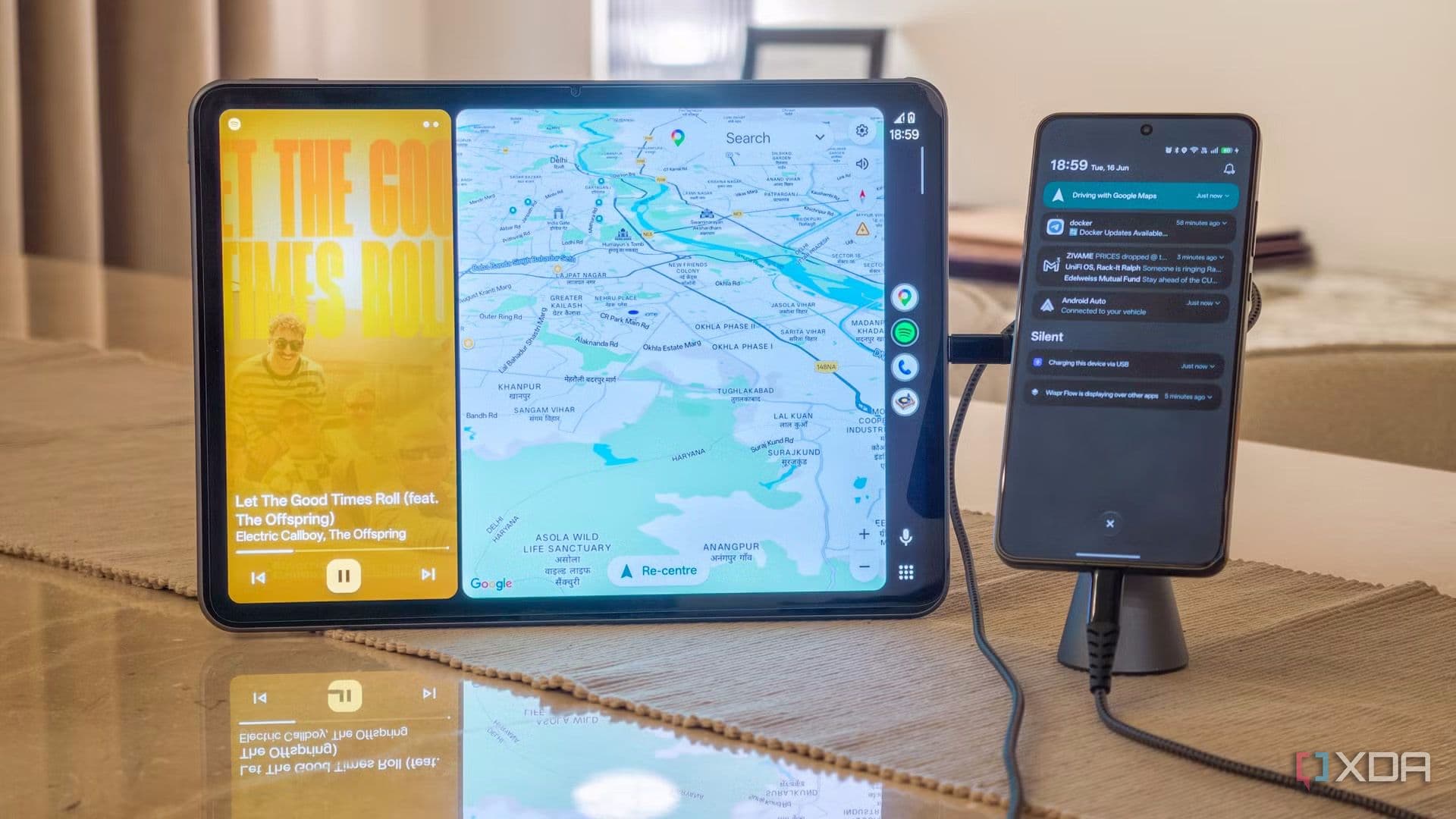
Why Let a Perfectly Good Phone Collect Dust?
If you're like most Android users, you probably have an old smartphone sitting in a drawer somewhere — forgotten, uncharged, and slowly becoming obsolete. Maybe it was replaced by a shinier new model, or maybe the battery life just couldn't keep up anymore. Whatever the reason, that device still has a surprisingly capable processor, a bright screen, and powerful enough software to serve a very real purpose. Instead of contributing to the ever-growing pile of electronic waste, you can give that phone a second life as a dedicated Android Auto display — and once you try it, you'll wonder why you didn't do it sooner.
This isn't a complicated hack or a deep technical project. It's a practical, everyday solution that costs almost nothing and genuinely improves the driving experience. Here's everything you need to know to set it up and start using it.
What Is Android Auto and Why Does It Matter?
Android Auto is Google's in-car software platform designed to mirror a simplified, driver-friendly version of your smartphone's interface onto a display while you drive. It gives you access to navigation via Google Maps or Waze, music and podcast apps like Spotify, and hands-free messaging and calling — all controlled by voice or large, easy-to-tap buttons that minimize distraction on the road.
The problem for many drivers is that their car either doesn't have a built-in Android Auto-compatible head unit, or the one it does have is outdated and clunky. Buying a new aftermarket head unit can cost anywhere from $150 to $500 or more. That's where your old Android phone comes in as a surprisingly elegant and affordable alternative.
What You'll Need to Get Started
Before you dive in, let's go over the basic requirements. The good news is that the list is short and most of what you need you probably already own.
- An old Android phone running Android 6.0 or higher, with a working screen and a functioning USB port or Bluetooth capability.
- Your primary Android phone, which will act as the connected device running Android Auto.
- A USB cable or Bluetooth connection to link the two devices together, depending on your chosen setup method.
- A car mount or dashboard holder to position the old phone safely within your line of sight while driving.
- A power source, such as a car USB charger or a charger plugged into your car's 12V adapter, to keep the old phone powered during your drive.
That's genuinely it. No expensive hardware, no soldering, and no voiding any warranties.
How to Set Up Your Old Android Phone as an Android Auto Display
Step 1: Install the Right App
The key to making this work is an app called AA Mirror (or similar alternatives like Car Stream). These apps allow your secondary device — your old phone — to wirelessly display and mirror the Android Auto interface being run on your primary phone. Search for the relevant app on the Google Play Store, install it on both devices, and follow the initial pairing instructions.
Step 2: Connect Your Primary Phone to Android Auto
On your main phone, start Android Auto as you normally would — either via USB connection to your car's head unit (if available) or in wireless mode. If your car doesn't support Android Auto at all, you can run Android Auto in standalone mode using your primary phone as the host.
Step 3: Mirror the Display to Your Old Phone
Once Android Auto is running on your primary device, open the mirroring app on your old phone and initiate the screen share. Within moments, your old phone will display a clean, full-screen Android Auto interface that you can interact with directly. Mount it on your dashboard, plug it into power, and you're ready to drive.
Step 4: Optimize Your Setup
A few tweaks will make the experience much more polished. Turn off auto-brightness on the old phone and set the display to maximum brightness so it remains clearly visible in daylight. Disable all unnecessary notifications on the secondary device so they don't interrupt the mirrored screen. You might also want to enable "Stay awake" in the Developer Options so the display never times out mid-drive.
The Real-World Benefits Are Hard to Ignore
Once you've used this setup for even a single commute, the appeal becomes obvious. The old phone's screen is often larger than many factory-installed head units, especially in older vehicles. You get a crisp, responsive display that shows Google Maps turn-by-turn directions, your current playlist, and incoming message alerts — all without ever needing to look down at your lap or fumble with a tiny built-in screen.
Beyond convenience, there's a genuine environmental argument to be made here. Consumer electronics are one of the fastest-growing sources of e-waste globally. By repurposing your old device instead of discarding it, you're extending its useful life by months or even years and keeping it out of a landfill.
Tips for the Best Android Auto Display Experience
- Use a windshield or vent mount that positions the screen at roughly eye level to minimize the time your eyes leave the road.
- If possible, choose a USB-C car charger that supports fast charging so your secondary phone stays topped up throughout longer drives.
- Periodically restart the old phone to clear cached memory and keep the mirrored display running smoothly.
- If the connection drops intermittently, try switching from Wi-Fi direct to a mobile hotspot connection between the two devices for greater stability.
A Simple Upgrade That Changes Everything
Repurposing an old Android phone as a dedicated Android Auto display is one of those rare tech solutions that is genuinely free, genuinely useful, and available to almost anyone. It transforms a device you had completely forgotten about into something you rely on daily. Whether you drive a decade-old car with no smart features or a newer vehicle with a frustratingly limited factory display, this setup delivers a modern, connected driving experience without spending a single dollar on new hardware.
So go find that old phone in your drawer, dust it off, and give it the second life it deserves. Your daily commute will be better for it.