
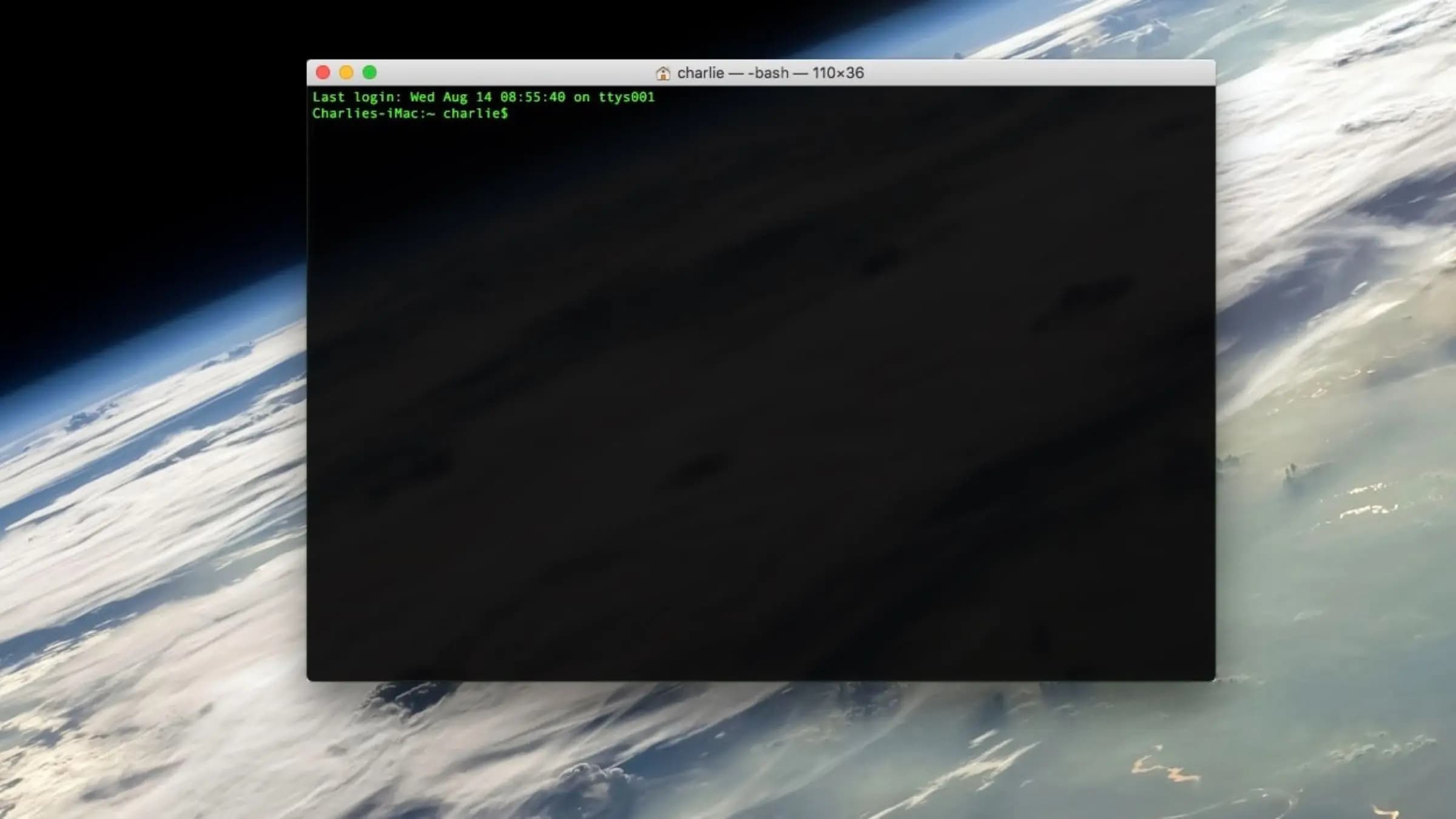
Apple Finally Explains Why Your Mac Blocks Certain Terminal Commands
If you've ever opened the Terminal app on your Mac and been greeted by an unexpected warning or found that a command simply refused to run, you're not alone. For years, Mac users — from developers to power users to everyday enthusiasts — have encountered these mysterious blocks without a clear explanation from Apple. That silence has finally ended. Apple has published a new support document that sheds light on exactly why macOS blocks certain Terminal commands, what those security alerts mean, and what you should do when one appears on your screen.
With the arrival of macOS Tahoe, Apple's commitment to user security has become more visible than ever. Understanding what's happening under the hood can save you time, protect your machine, and help you make more informed decisions when working in the command line.
What Is the macOS Terminal and Why Does It Matter?
The Terminal app is macOS's gateway to the Unix-based core of the operating system. Through it, users can execute commands that control virtually every aspect of their Mac — from managing files and processes to configuring system settings that are completely hidden from the standard graphical interface. For developers, system administrators, and technically inclined users, Terminal is an indispensable tool.
But that same power is precisely what makes it a target. A single malicious or poorly formed command executed in Terminal can cause significant damage — deleting critical files, compromising system integrity, or opening the door to malware. Apple has long been aware of this double-edged nature, and over the years it has quietly built in more and more layers of protection to guard against misuse, whether intentional or accidental.
Why Has macOS Been Blocking Terminal Commands?
Apple's newly published support document confirms what many users had begun to suspect: macOS actively monitors and, in certain cases, blocks Terminal commands that it identifies as potentially dangerous. This behavior is part of Apple's broader security architecture, which includes technologies like System Integrity Protection (SIP), Gatekeeper, and the more recent additions that have been reinforced in macOS Tahoe.
When macOS detects a command that could pose a risk to the system — such as one that attempts to modify protected directories, alter kernel extensions, or interact with sensitive system files — it intervenes. Instead of simply allowing the operation to proceed silently, the operating system now raises a visible alert to inform the user that something unusual is happening.
According to Apple's documentation, these warnings are not arbitrary. They are triggered by specific patterns of behavior that align with known attack vectors or particularly destructive operations. The goal is not to frustrate legitimate users but to create a moment of friction that forces conscious decision-making before something irreversible occurs.
What Do the Terminal Warning Alerts Actually Mean?
One of the most valuable aspects of Apple's new support document is the plain-language explanation of what these alerts are actually trying to tell you. Previously, many users would see a vague warning and either panic, dismiss it without reading, or turn to third-party forums for interpretation. Now, Apple provides clearer context directly.
In general, a Terminal block alert in macOS means one of the following:
- The command you're attempting to run is trying to access or modify a part of the system that macOS protects by default.
- The application or script calling the Terminal command has not been granted the appropriate permissions to perform the requested action.
- macOS has identified the command as matching a known pattern associated with malicious activity or system destabilization.
- A sandboxing rule or privacy policy is preventing the command from accessing restricted data, such as contacts, photos, or location information.
Understanding which of these scenarios applies to your situation is the key to responding appropriately — and Apple's document now walks users through exactly that process.
What Should You Do When macOS Blocks a Terminal Command?
Apple's guidance emphasizes that your first response should always be to read the alert carefully before taking any action. The warning message itself typically contains information about what was blocked and why. Dismissing it too quickly means missing crucial context.
If you are confident the command is legitimate — for example, you're running a trusted developer tool or following verified instructions from a reputable source — Apple outlines several paths forward depending on the nature of the block. In some cases, granting specific permissions in System Settings under Privacy & Security will resolve the issue. In others, you may need to temporarily adjust SIP settings, though Apple strongly advises against disabling SIP entirely, as doing so removes a fundamental layer of protection from your Mac.
However, if the blocked command appeared unexpectedly — perhaps triggered by a script you didn't intentionally run, or originating from software you recently installed — the alert should be treated as a genuine warning sign. In these situations, Apple recommends not proceeding and instead investigating the source of the command to ensure your system has not been compromised.
macOS Tahoe and the Evolution of Mac Security
The publication of this support document coincides with broader security enhancements in macOS Tahoe. Apple has been steadily tightening the screws on what applications and scripts can do without explicit user consent, and Terminal is no exception. The new transparency around blocked commands is part of an ongoing effort to make macOS security less opaque and more user-empowering.
Rather than silently failing or throwing cryptic error codes, macOS now aims to communicate with users in a way that is informative without being alarmist. That shift in philosophy — from silent restriction to informed consent — reflects how Apple views modern operating system security: not as a wall that keeps users out, but as a set of guardrails that keep users safe while still respecting their autonomy.
The Bottom Line for Mac Users
Whether you're a seasoned developer or someone who only opens Terminal occasionally to follow a tutorial, Apple's new documentation is worth reading. It demystifies a behavior that has puzzled Mac users for a long time and gives you the knowledge to respond confidently when one of these alerts appears. macOS blocking Terminal commands is not a bug, a glitch, or an overreaction — it's a deliberate and increasingly well-explained feature designed to keep your Mac secure in an era where command-line attacks are more sophisticated than ever.
The next time your Mac raises a warning in Terminal, you'll know exactly what it means and what to do about it. And that knowledge, as much as any security feature, is what truly keeps your system safe.