
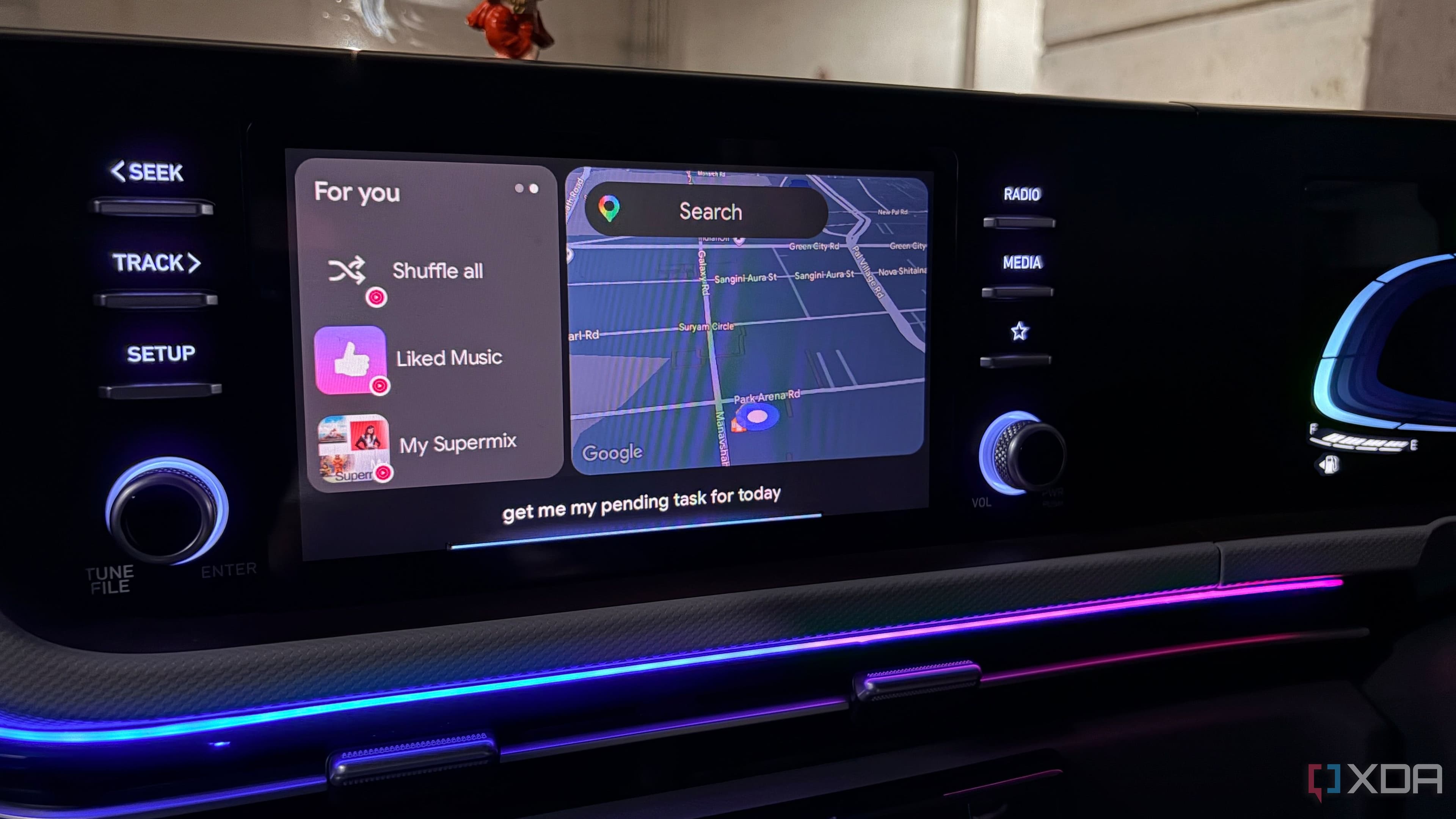
Why Android Auto Starts to Feel Overwhelming
Android Auto was designed with one promise in mind: make driving simpler, safer, and more connected. But if you've been using it for a while, you've probably noticed that the experience can quietly drift in the opposite direction. Over time, your car's dashboard becomes a cluttered mess of apps you never open, notifications that ping at the worst moments, and shortcuts that seemed useful when you first set them up but now just get in the way.
The truth is, Android Auto doesn't become distracting overnight. It happens gradually — one app added here, one notification permission left unchecked there. Before long, you're glancing at your screen more than you should, trying to dismiss alerts or find the right button while navigating traffic. That's not just annoying. It's genuinely dangerous.
The good news is that a handful of deliberate changes can transform your Android Auto setup back into the clean, focused tool it was always meant to be. Here's how to do it.
Start by Auditing Your App Launcher
The first and most impactful step is to take a hard look at the apps currently visible in your Android Auto launcher. By default, Android Auto surfaces every compatible app on your phone — navigation tools, music players, podcast apps, messaging apps, and more. Many of these you may never actually use while driving.
Head into the Android Auto settings on your phone, navigate to the app launcher section, and hide anything that doesn't serve a real purpose behind the wheel. A good rule of thumb is to keep only three categories of apps visible: navigation, audio, and communication. Everything else is noise.
When you reduce visual clutter in the launcher, you reduce the mental effort required to find what you need. That means fewer seconds with your eyes off the road and a far more intuitive experience overall.
Take Control of Notifications
Notifications are one of the biggest culprits behind a distracting Android Auto experience. When your phone is connected to the car, certain apps will push alerts directly to your dashboard — and not all of them respect the fact that you're driving.
To fix this, go into your Android Auto notification settings and be ruthless. Only allow notifications from apps where an immediate response is genuinely necessary, like messaging apps you actively use for communication. Turn off notifications from news apps, social media, shopping platforms, and anything else that can wait until you've parked.
You should also enable Android Auto's built-in Do Not Disturb mode or driving focus feature if you haven't already. This creates a buffer between your phone's usual notification behavior and what actually gets surfaced while you're on the road. The result is a quieter, calmer dashboard that keeps your attention where it belongs.
Simplify Your Home Screen Layout
Android Auto's home screen can be customized more than most people realize. The default layout often includes widgets and suggestions that are algorithmically generated rather than personally curated. These might include suggested destinations based on your habits or recently played media — features that sound helpful in theory but can add visual complexity you don't need.
Take a few minutes to review what's showing on your home screen and pare it back. Prioritize your most-used navigation app and your preferred audio source. If your head unit supports it, arrange these in a way that feels natural to how your eyes move when you glance at the screen. Muscle memory matters when you're driving — a consistent, predictable layout means less cognitive load every single time you get behind the wheel.
Optimize Your Phone's Performance Before You Connect
Android Auto's speed isn't just determined by your car's head unit — your phone plays a massive role too. If your phone is running dozens of background apps, struggling with storage, or working with a slow USB cable, you'll notice lag in the interface, delayed app launches, and sluggish responses to touch input.
Here are a few things worth doing to speed things up:
Use a high-quality USB cable certified for data transfer, not just charging. A cheap cable is one of the most common and least obvious causes of a slow or unstable Android Auto connection.
Close background apps on your phone before connecting to the car, especially any that are resource-intensive.
Keep your phone's storage reasonably clear. Devices running near capacity often perform noticeably slower across all functions.
Make sure both your phone's operating system and the Android Auto app itself are fully up to date. Performance improvements and bug fixes are regularly pushed through updates.
Consider Going Wireless — With Caveats
If your vehicle supports wireless Android Auto, making the switch can dramatically improve the experience from a convenience standpoint. No fumbling with cables means your phone connects the moment you get in the car, and the overall setup feels much cleaner.
That said, wireless Android Auto can sometimes introduce latency or connection instability, particularly if your phone or car's wireless hardware is older. If you find the wireless connection unreliable, a wired connection with a good cable will almost always be faster and more consistent.
The Bigger Picture: Less Is More Behind the Wheel
The underlying lesson across all of these changes is the same one that applies to good design in general: less is more. Android Auto is most powerful when it does a small number of things exceptionally well — getting you where you're going, keeping you entertained, and letting you communicate safely — rather than trying to replicate the full experience of your smartphone on a six-inch screen.
When you strip away the clutter, silence the unnecessary noise, and optimize the basics, Android Auto stops competing for your attention and starts genuinely supporting your drive. You'll likely find that the version of Android Auto you end up with is faster, calmer, and significantly safer than what you started with — and that the whole thing takes less than an hour to set up properly.
Sometimes the best technology upgrade isn't a new device. It's simply taking the time to configure the one you already have.