
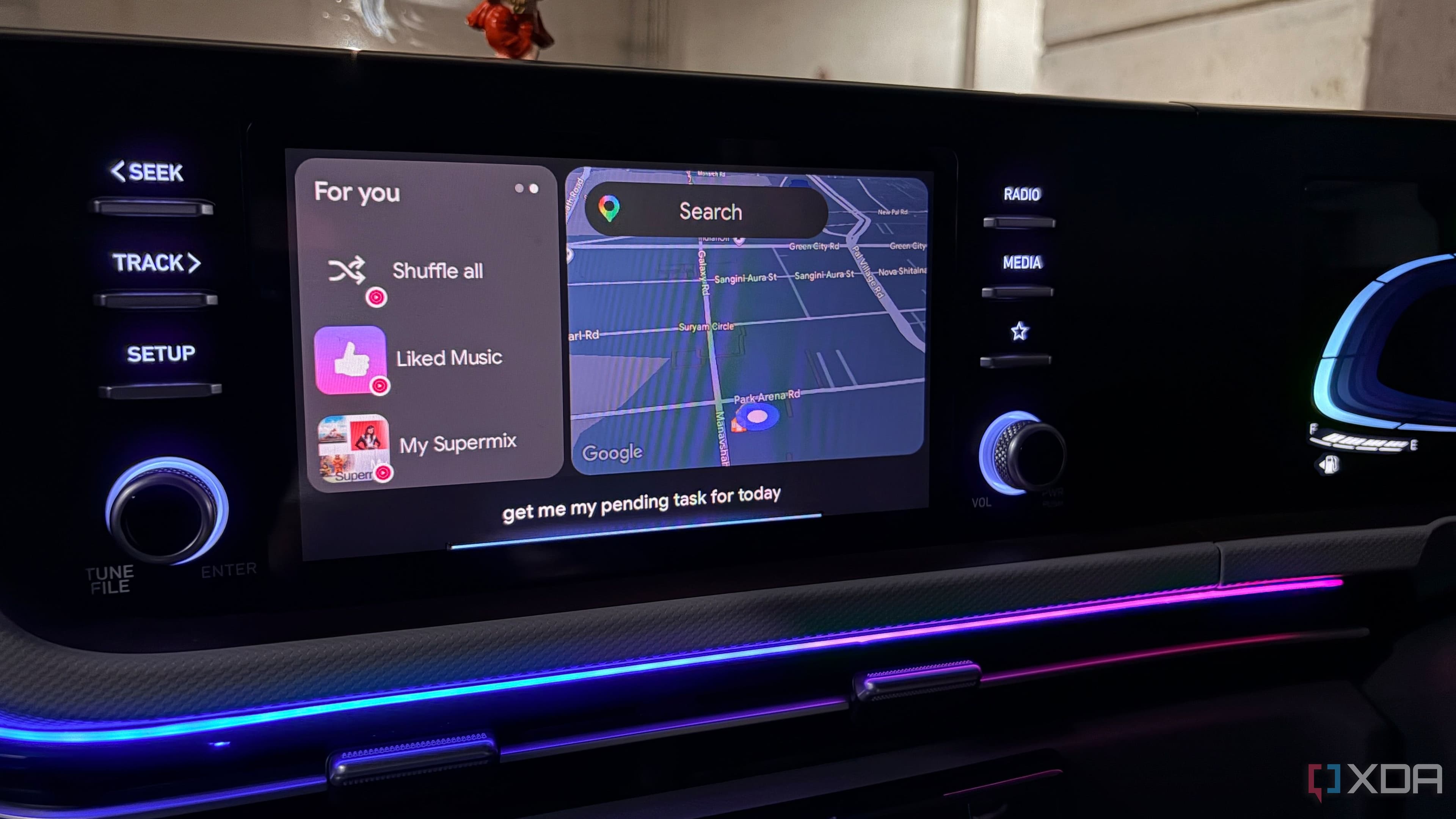
Why Android Auto Can Feel More Like a Problem Than a Solution
Android Auto was designed with one promise: make driving simpler. Connect your phone, glance at a clean interface, and keep your focus where it belongs — on the road. In theory, it's a brilliant idea. In practice, however, many drivers end up with a cluttered dashboard full of apps they never open, notifications that ping at the worst possible moments, and a launcher packed with shortcuts that only add to the noise rather than reduce it.
If that sounds familiar, you're not alone. After months of letting Android Auto accumulate digital clutter, I decided to take a hard look at every setting, every app, and every notification permission. The result was a dramatically cleaner, faster, and genuinely less distracting experience behind the wheel. Here's exactly what I changed — and why each tweak made a real difference.
Start by Auditing the Apps Visible on Your Launcher
The first and most impactful change you can make is stripping down the Android Auto app launcher. By default, Android Auto surfaces every compatible app on your phone — music streamers, podcast players, navigation tools, messaging apps, and more. Most drivers regularly use only a handful of these, yet the full list sits there demanding your visual attention every time you glance at the screen.
Open the Android Auto app on your phone, navigate to the app launcher settings, and disable every app you genuinely don't use while driving. If you're a Spotify user who never touches Google Podcasts in the car, hide it. If you use Google Maps exclusively and never launch Waze, remove Waze from view. Fewer icons means faster visual scanning, which directly translates to less time with your eyes off the road.
This single step alone can make the launcher feel immediately more purposeful. You'll stop hunting through a crowded grid and start finding your essentials instantly.
Tame Your Notifications Aggressively
Notifications are the silent enemy of a distraction-free drive. Android Auto is designed to read some messages aloud and display banners for others, which sounds helpful until you're getting pinged by group chats, promotional emails, and app alerts every few minutes on the highway.
Go into your phone's Android Auto notification settings and be ruthless. Ask yourself: does this notification need my attention while I'm driving? For most apps, the honest answer is no. Disable notification access for social media apps, email clients, news aggregators, and any app that isn't directly relevant to communication or navigation. Allow only messaging apps you actually need — and even then, consider silencing all but your closest contacts during drive time.
You can also use Android Auto's built-in Do Not Disturb-style settings to pause non-essential alerts the moment your phone connects to your car. This is one of the most underused features in the platform, and enabling it transforms the experience from reactive to calm.
Optimize Your Navigation Setup Before You Drive
One of the biggest sources of friction in Android Auto isn't the interface itself — it's the habit of setting up navigation after you've already started moving. Typing a destination while your car is in motion, even with voice commands, pulls attention away from driving and extends the time your eyes spend off the road.
Build a pre-drive routine instead. Before you put the car in gear, connect your phone, open your navigation app, and enter your destination. Let the route load and confirm your audio settings. This takes thirty seconds and eliminates one of the most common distracting behaviors drivers engage in with their infotainment systems.
If you frequently visit the same locations, use Google Maps' saved places feature so that your home, workplace, gym, and other regulars appear in suggestions immediately. The fewer taps required to start a route, the better.
Rethink Your Audio Experience
Audio is the one area where Android Auto can actually enhance focus rather than break it — but only if it's set up thoughtfully. Jumping between apps to find music, dealing with auto-play surprises, or fumbling with podcast queues while driving undermines the whole point of having a connected system.
Choose one primary audio app and make it your default. Before driving, queue up your playlist, podcast episode, or radio station so that audio starts automatically when you connect. Avoid apps that display heavy visual interfaces or require frequent interaction to skip or browse. The ideal audio setup on Android Auto is one where you hit play and essentially forget it's there.
Use Voice Commands More, Touch Controls Less
Android Auto's voice assistant integration is far more capable than most drivers give it credit for. You can send messages, change music, get directions, make calls, and adjust settings — all without touching the screen. Training yourself to reach for voice first, and the touchscreen only as a last resort, dramatically reduces physical distraction during drives.
Say "Hey Google" or press the microphone button on your steering wheel, and let the assistant handle what would otherwise require multiple screen taps. It takes a little practice to trust it, but once you do, the whole system starts to feel like it was designed correctly from the beginning.
The Payoff Is Worth the Effort
None of these changes require technical expertise or hours of tinkering. They're small, deliberate decisions that compound into a meaningfully better experience. A leaner app launcher, quieter notifications, a smarter audio setup, and a habit of using voice commands will collectively make Android Auto feel faster, look cleaner, and demand far less of your attention while you're behind the wheel. That's exactly what it was supposed to do in the first place.