
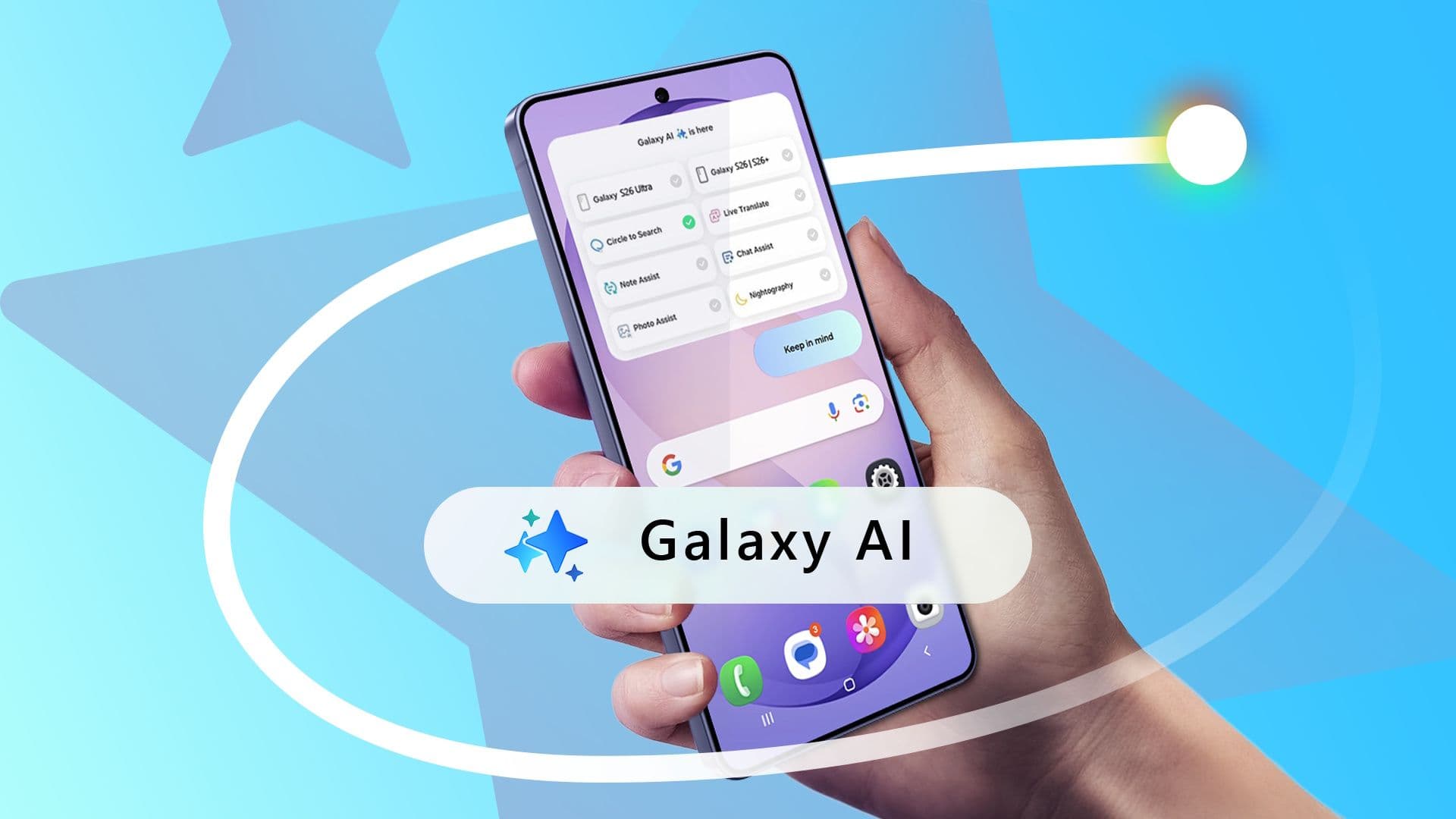
Can Galaxy AI Actually Help You Survive a Busy Work Week?
I'll be upfront with you: I was skeptical. When Samsung first rolled out Galaxy AI across its device lineup, my first instinct was to dismiss it as yet another tech company slapping the word "AI" onto features that would have been useful enough without the branding. But after a nudge from a colleague and a particularly chaotic Monday morning, I decided to give it a real shot. Not just a five-minute demo — a full, committed work week of actually leaning on Galaxy AI to help me manage tasks, communications, and everything in between.
What followed was a genuinely eye-opening experience. It wasn't always smooth sailing, and it took me a few days to truly embrace the full toolkit. But by Friday afternoon, I had formed a clear opinion: some of these features are gimmicks dressed up in polished interfaces, and one of them is something I now genuinely cannot imagine working without.
Getting Started: The Learning Curve Is Real
Let's talk about the friction first, because it would be dishonest to skip over it. Galaxy AI is a collection of individual tools baked into Samsung's One UI ecosystem, and they don't all announce themselves loudly. Some features are tucked inside apps you already use — the native keyboard, the Notes app, the Phone app, and the Gallery. Others are accessible through Circle to Search, Samsung's gesture-based search shortcut.
On day one, I fumbled through menus more than I'd like to admit. The tools weren't difficult to use once I found them, but discovery was a minor obstacle. If you're picking up Galaxy AI for the first time, spending thirty minutes exploring where each feature lives before jumping into a high-stakes workday is well worth it. The payoff comes once you stop hunting and start using.
The Features I Tested Throughout the Week
Live Translate During Calls
One of Galaxy AI's standout capabilities is Live Translate, which works directly inside the Phone app to provide real-time translation during calls. I tested this on a brief check-in with a contact whose primary language is Spanish. The translation wasn't flawless — some idiomatic phrases got mangled — but the core meaning was preserved well enough to hold a productive conversation. For professionals who regularly deal with multilingual clients or international colleagues, this feature could be quietly transformative, especially considering it works without needing a third-party app.
Note Assist in Samsung Notes
Note Assist is an AI-powered writing assistant embedded in Samsung Notes. It can summarize your notes, format them into cleaner structures, and translate text. I used it primarily to clean up rough meeting notes I'd typed in real time while on calls. Pasting a wall of bullet fragments and receiving back a neatly organized summary saved me genuine time. It wasn't always perfect — occasionally it over-simplified important nuances — but it reduced my post-meeting cleanup time by a noticeable margin.
Writing Assist Across the Keyboard
The Galaxy AI keyboard integration allows you to rewrite, proofread, or adjust the tone of text in almost any text field. I used this most often when drafting emails that I wanted to sound more professional, or conversely, when I wanted to soften a message that had come out a little blunt after a frustrating afternoon. The tone adjustment feature in particular is something I found myself reaching for multiple times per day.
Circle to Search
Circle to Search — the feature that lets you draw a circle around anything on your screen to search for it — is clever, and it comes in handy more often than you'd expect. During the week I used it to quickly look up terminology in documents, identify products in emails, and pull up context on names or companies mentioned in meeting agendas. It's fast, seamless, and genuinely reduces the friction between reading something unfamiliar and finding out more about it.
The One Tool That Became Truly Indispensable
If I had to nominate a single Galaxy AI feature as indispensable based on a week of real-world use, it would be the combination of Note Assist and Writing Assist working in tandem. Individually, each tool is useful. Together, they form a lightweight but powerful writing and thinking workflow that integrates directly into how I already work.
Here's why this pairing matters so much: the modern workday is saturated with text. Emails, Slack messages, meeting notes, reports, proposals. The cognitive load of constantly shifting from receiving information to producing polished communication is exhausting. Having an AI layer that can take messy input and help you shape it into clear output — right there on your phone, in the apps you already use — removes a friction point that you didn't even realize was draining you.
I started using Note Assist to summarize my notes immediately after each meeting, then using Writing Assist to draft follow-up emails based on those summaries. What used to take fifteen to twenty minutes per meeting came down to five or six. Across a full week of back-to-back calls and deadlines, that time savings was significant.
What Galaxy AI Still Needs to Improve
No honest review would be complete without acknowledging the gaps. Galaxy AI, at this stage, is not a unified, seamless experience. The features feel somewhat siloed — each one living inside a specific app rather than working together as a coherent assistant. There's no central hub that ties everything together, which means your workflow requires manual handoffs between tools.
Additionally, the AI-generated outputs still need human review. Summaries can occasionally miss context, and tone rewrites sometimes veer into awkwardly formal territory. Galaxy AI is a co-pilot, not an autopilot — and users who treat it as the latter will likely end up frustrated or, worse, sending emails they didn't mean to send exactly as written.
Is Galaxy AI Worth Your Attention as a Productivity Tool?
After a full week of deliberate, varied use, my answer is a qualified yes — and leaning more toward an enthusiastic one by the end. Galaxy AI is not yet the polished, unified AI assistant that the marketing might lead you to expect. But it contains individual features that are genuinely, practically useful for knowledge workers.
- If you take a lot of notes and hate cleaning them up afterward, Note Assist will save you real time.
- If you write a high volume of emails and messages, Writing Assist will reduce your mental load.
- If you work across languages, Live Translate is worth exploring seriously.
- If you spend a lot of time reading on your phone, Circle to Search will quickly become second nature.
The key is approaching Galaxy AI not as a magic productivity button, but as a set of targeted tools that each solve a specific, common workplace friction. Once I reframed my expectations that way, the value became clear — and one of those tools became a permanent fixture in how I work every single day.
Samsung has built something genuinely interesting here. It just needs a little more time, polish, and integration to become truly great.